 Vape Sage
Support & basic user manual
Vape Sage 1.0 combines the original calculators with inline workbench panels. Scroll the main calculator area to move between tools; there is no separate workbench submenu.
The examples in this manual are illustrative, not measurements or recommended device settings. Do not use a result to override manufacturer restrictions or explain away unstable, damaged or abnormal equipment.
1. Entering values and choosing options
- Tap an editable numeric value. Fractional quantities use Apple’s decimal pad; whole counts use the number pad.
- The caret behaves normally. Use the clear (×) button to replace the whole value deliberately, or select/edit text normally. The +/− controls are optional shortcuts.
- Use the accessory’s ± button for signed quantities where supported, and Done to finish. Invalid values or impossible intervals are rejected rather than silently turned into a valid setting.
- Read the unit beside each quantity. The converter supports explicit unit/gauge tables; applicable fractional labels are not just numeric table indices.
- Use the short inline choice buttons when they fit. Longer sets use the native menu picker. Calculated results are read-only and grouped on a contrasting subpanel; explanatory text stays outside.
The keyboard covers the bottom advertising area; it should not lift that banner into your working space. Only enough content scrolls to keep the current entry visible.
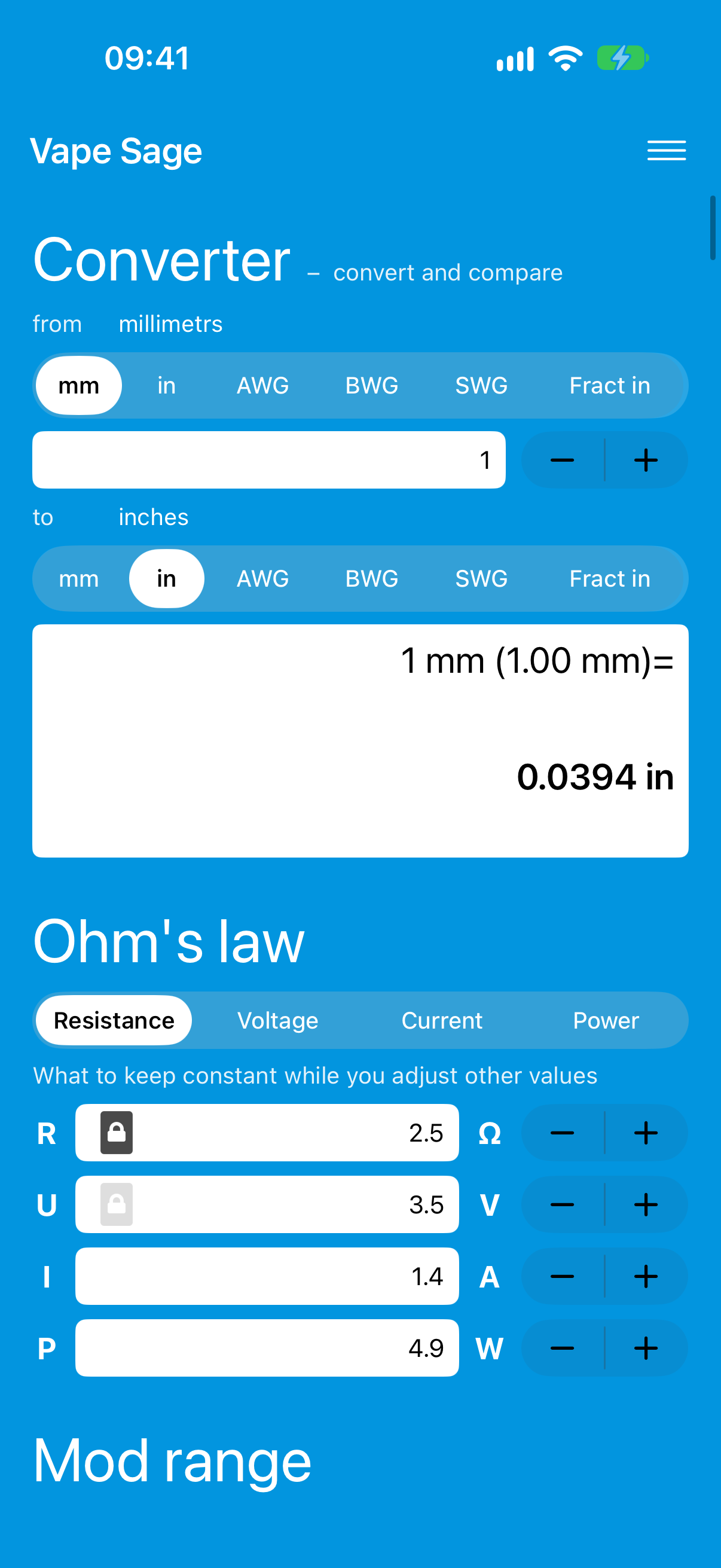
2. Original calculators
| Panel | Basic operation |
|---|---|
| Converter | Choose the quantity/table and input/output units, enter a value, then finish with Done. Read the result with its unit. |
| Ohm’s law | Choose which quantity stays constant, then change another value. R, U, I and P represent resistance, voltage, current and power. The selected constraint determines the related calculations. |
| Device/range limits | Enter the relevant limits and keep minimum/maximum values in order. A numerical interval is not device approval. |
| Battery estimates | Enter capacity, voltage and the requested load/efficiency assumptions. Runtime depends on those assumptions and is not measured state of charge. |
| Coil wrapping | Select supported wire/geometry options and check dimensions, count and units. Reported geometry does not certify the resulting physical build. |
3. E-liquid mixture arithmetic
Enter the batch volume, base concentration, target concentration and PG/VG proportions using the displayed units. The Recipe subpanel reports the arithmetic breakdown and total. Keep base/target units consistent and check whether the requested target is reachable from the supplied inputs.
Zero-nicotine and invalid/unreachable states are handled explicitly. The inherited mass/density approximation is not dosing, exposure, health or safety advice. This manual does not instruct physical preparation or handling of nicotine.
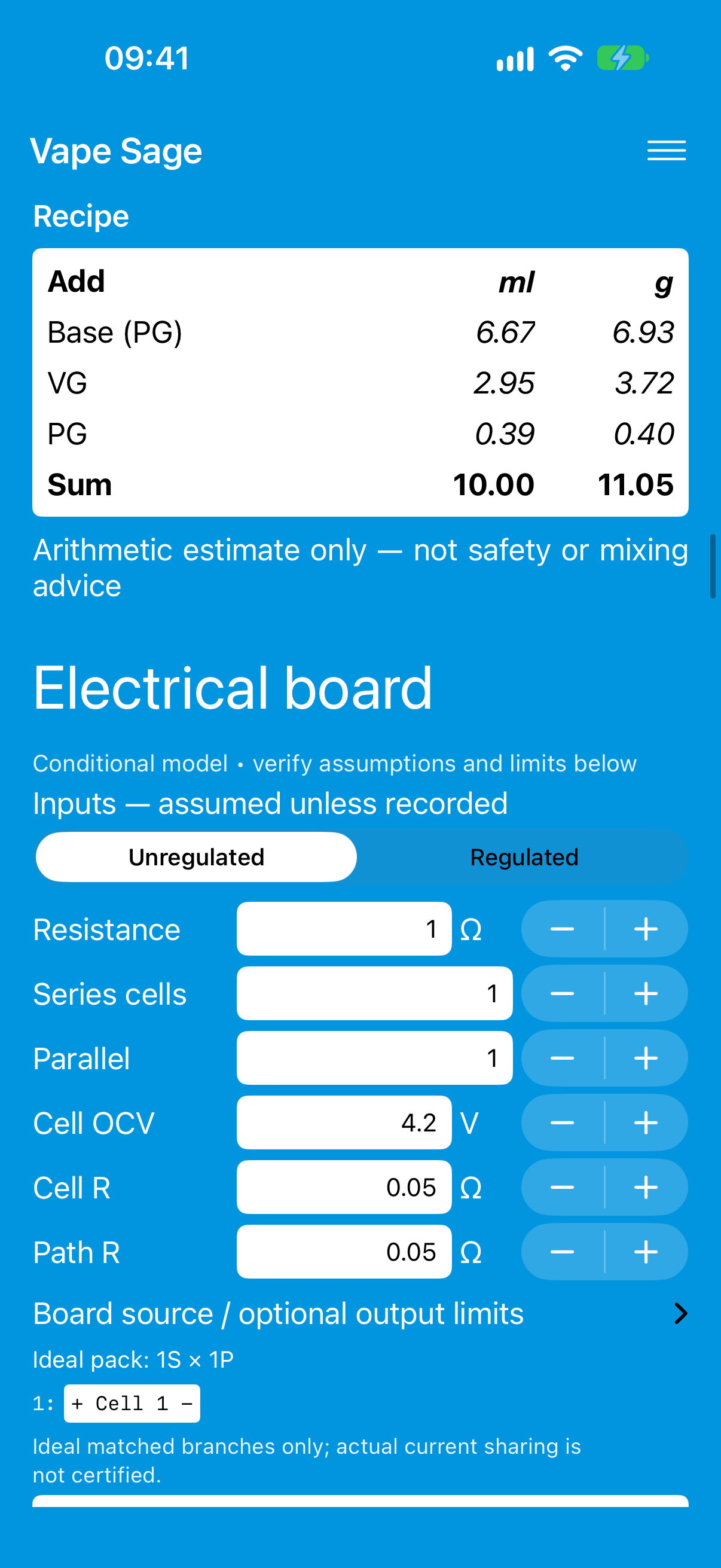
4. The inline workbench
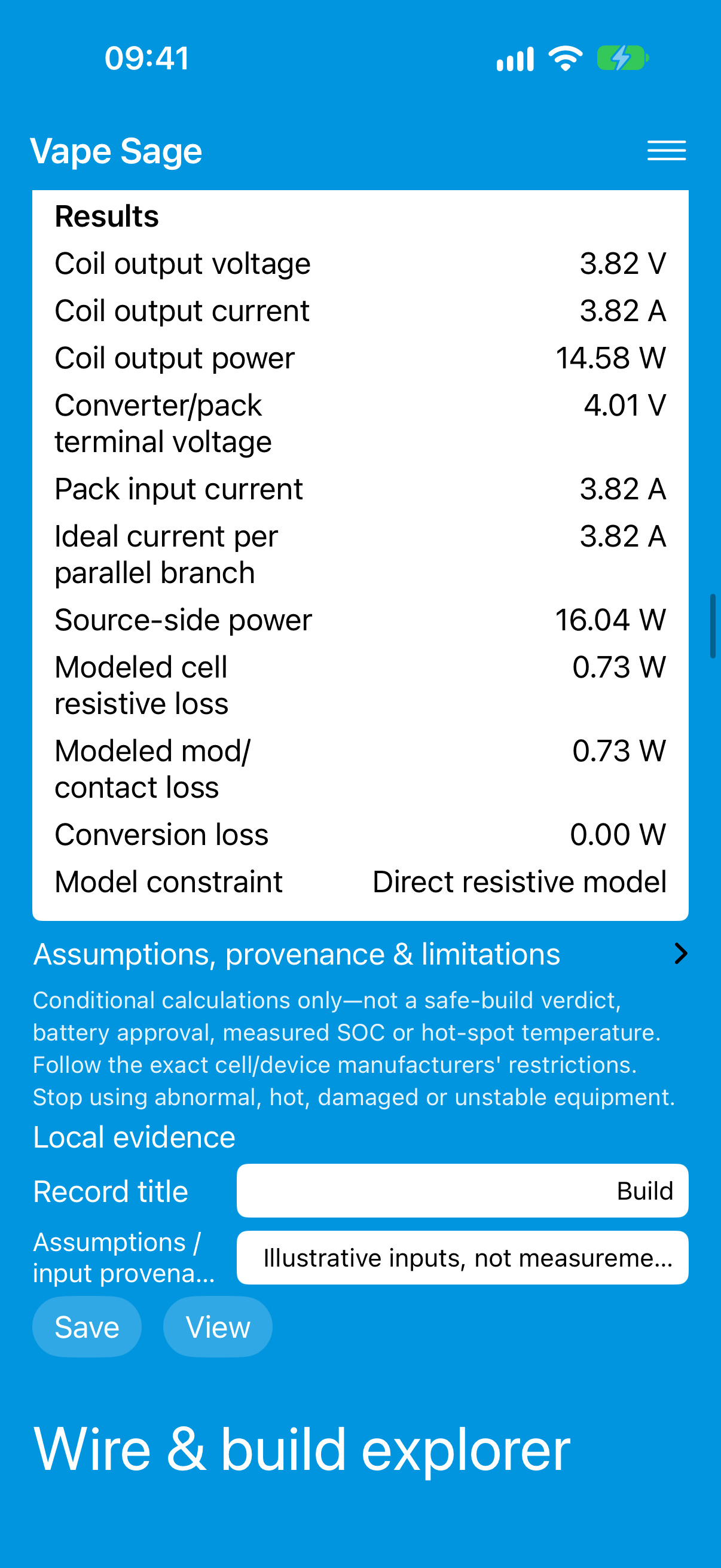
Electrical board and results
Select the model, enter its required inputs and supply any board/device limit sources. Treat every default or unrecorded quantity as an assumption. Read the Results subpanel together with the separate Assumptions, provenance & limitations disclosure. A missing limit is unknown, not unlimited.
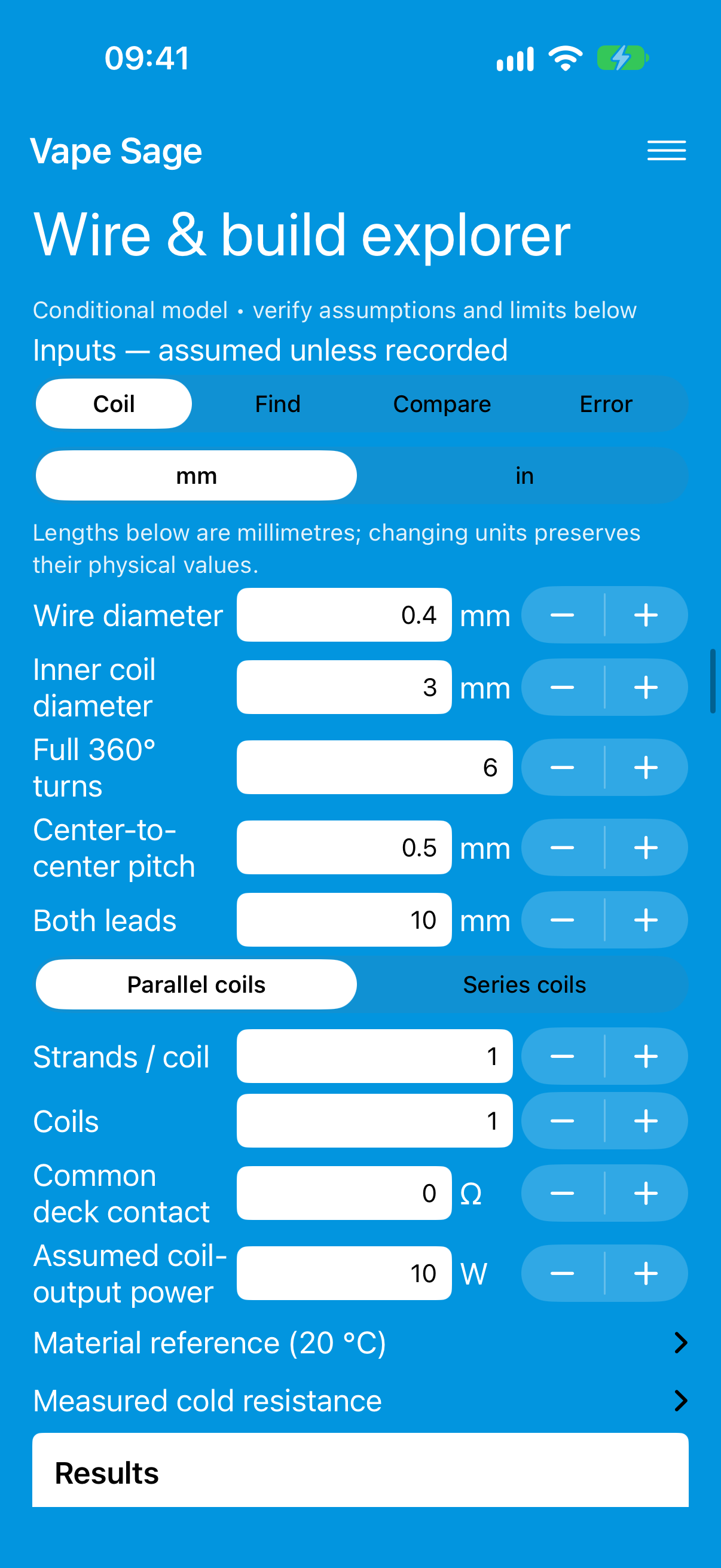
Wire & build explorer
Choose Coil, Find, Compare or Error. The mm/in selector preserves physical lengths when you change units. Enter wire geometry, strands/coils and the intended series/parallel interpretation. Material and measured-resistance sections require your own source/observation context. Compare can freeze an independent reference rather than silently follow later edits.
Power & battery curves
Choose Voltage curve, Board envelope or Runtime. Supply the inputs and limits for that mode. A sourced SOC/OCV curve requires the relevant cell/profile conditions; no universal approved battery profile is supplied.
Temperature-control audit
Choose local linear TCR or a sourced TFR curve. Enter the measured baseline, temperature and coefficient/curve source as applicable. Unknown, nonmonotonic inverse or out-of-range results remain unavailable. The app does not claim to measure a hot spot or validate firmware compatibility.
Other panels
- Composite wire paths: select the explicit contact/topology assumptions; unknown contact is not replaced by a precise equivalent.
- Thermal scenario: an illustrative fixed-parameter model, not measured coil temperature or a safety threshold.
- Evidence notebook: record identities, sources, conditions, observations and optional local photos.
- Recorded telemetry: inspect imported, documented observations; the app does not issue device firing or configuration commands.
- Units & reference: choose the physical quantity and units; use the original converter for its explicit wire-gauge tables.
5. Save, View and delete saved items
- Enter a meaningful record title and any input provenance, then tap Save. This creates a local versioned snapshot; it does not upload your notebook to VONNLU.
- Tap View to open the shared Saved items list.
- Open an item to inspect its recorded inputs/outputs. Restore this revision loads its draft; the comparison action uses its snapshot as a reference.
- To delete one saved revision, open it and select Delete saved item, or swipe its list row. Confirm the named revision. Cancel changes nothing.
- Deletion removes that saved revision, not the other saved items or your current draft inputs. Existing exports and device/file-provider backups are separate copies.
Use the list’s Manage menu for Export notebook, Import / merge notebook and New record. New record starts another record family using the current inputs; it is not a delete-all action.
6. Files, backups and CSV
Export a notebook through View → Manage → Export notebook and choose a destination in Apple Files. Exports use versioned names and the app verifies the saved bytes. Keep a backup before deleting the app. Import/merge validates supported archives and does not silently replace conflicting saved identities; a newer or unreadable original is preserved rather than replaced with an empty notebook.
Tool-specific data/photo imports stay in their relevant panel. CSV must be UTF-8 with the documented headers and physical units:
| Import | Headers |
|---|---|
| SOC/rested OCV | soc_fraction,rested_ocv_V |
| Temperature factor | temperature_C,resistance_factor |
| Recorded telemetry | time_s plus supported columns such as coil_power_W, coil_voltage_V, coil_current_A, temperature_C or rested_ocv_V |
Importing data does not verify its calibration, accuracy, licensing or suitability. Blank optional observations remain missing. A neutral CSV export is not a tested vendor/firmware configuration file.
7. Troubleshooting
A result is unavailable or an input is rejected
Check units, required fields, signs, source validity and minimum/maximum ordering. Do not invent a missing rating or expand a source’s valid interval just to obtain a number. The detailed assumptions/limitations explain the model’s boundaries.
No advertisement appears, or a consent choice is shown
The normal app is advertising-supported, but serving depends on connectivity, consent, regional configuration, ad availability and provider readiness. Calculators and notes do not require an ad to load. Required ad privacy choices are in the burger menu. Apple’s tracking permission can be declined without disabling the calculators.
I cannot find export, import or delete
Tap View. The Manage menu contains notebook export/import and New record. Open a saved item for Restore and Delete saved item. Deletion requires confirmation.
The notebook is read-only
Preserve and export the original before recovery. The app deliberately does not overwrite an unsupported or unreadable notebook with an empty substitute.
The displayed model disagrees with unstable or abnormal equipment
Stop using damaged, hot, unstable or otherwise abnormal equipment. A calculator cannot establish internal battery condition or override manufacturer restrictions. Obtain qualified advice rather than adjusting assumptions to explain away a fault.
All illustrations above are native simulator captures with advertising suppressed specifically for documentation. The normal Release build still uses production advertising—not Google test ads. Pictures do not depict approved operating conditions.
Privacy policy
Vape Sage by VONNLU LTD. This app-specific policy covers Vape Sage, not every VONNLU product. Updated 2026-11-03.
Local calculations and notebook
There is no publisher notebook account or app-operated cloud synchronization. Inputs, local notes, saved revisions, imported observations and attached photos stay in the app’s sandbox unless you deliberately export/share them through Files. Device backups and destinations such as iCloud Drive are controlled by your operating-system/file-provider settings. Exported notebooks may contain the inputs, notes, outputs and photos you saved; share them carefully.
Google advertising and consent
The Release app uses Google Mobile Ads and User Messaging Platform. It requests non-personalized advertising and disables publisher first-party ID; this does not mean no SDK collection. As disclosed on the App Store, the SDKs may process IP-derived coarse location, device identifiers, advertising data, product interactions, crash data, performance data and other diagnostics for applicable advertising, analytics and app-functionality purposes. Device identifiers may be used for tracking where consent/Apple permission allows it. User-associated location, identifiers and usage may be linked; the disclosed diagnostics are not linked.
Consent forms are shown where required; Ad privacy choices can be reopened from the burger menu when available. Apple’s tracking permission governs access to the advertising identifier. You can decline permission and continue using the calculators. Providers determine their own processing/retention: see Google’s privacy policy and Google’s iOS SDK data disclosure. We do not promise zero collection or invent a fixed provider retention period.
Retention, deletion and your choices
Use View to delete individual saved revisions. Current draft inputs and other revisions are kept. Deleting the app removes its local sandbox; previously exported files and external/device backups are not automatically removed. There is no publisher-side notebook account to delete. Manage tracking/advertising choices through the app and iOS settings, and manage backups through your file provider.
Audience, support and website
Vape Sage is for adults who already use vaping products. Its acknowledgement is self-declaration, not verified identity or legal-age assurance. People under 18 or the local legal adult age should not use it; we do not intentionally ask children for personal records.
If you email support, we process the address and information you choose to send to answer the request. Send only what is necessary. These app-specific website pages contain no advertising or embedded analytics scripts. Normal hosting/CDN access logs may process network/request information for delivery, security and diagnostics.
Questions, privacy requests and corrections: [email protected]. We will update this policy when actual practices change. A policy, warning or age statement is not regulatory or App Store approval.
Contact support
Email [email protected]. Include app/build version, iPhone/iPad model, iOS version, the tool and units involved, and the expected versus actual result. A minimal example or screenshot helps; do not send passwords, private keys, unnecessary personal photos or a full private notebook by default.
For battery or nicotine emergencies, use appropriate local emergency/medical services rather than app support. General reference: FDA battery-fire information and CDC vaping health information.